VP HEADSET COMPANION / SETUP GUIDE
VP Headset Companion
Setup guide
Know your headset. See what changed. Stay in control.
Live Stream Deck buttons show your headset’s status and configuration at a glance, while on-screen notifications make supported changes clear. Adjust supported settings without hunting for tiny headset buttons or memorizing cryptic button combinations.
Built for headset hardware, designed with optional Sonar integration in mind. Use it independently, or connect it with Sonar for a more coordinated audio setup.
Free to use. Sonar optional. Features vary by headset.
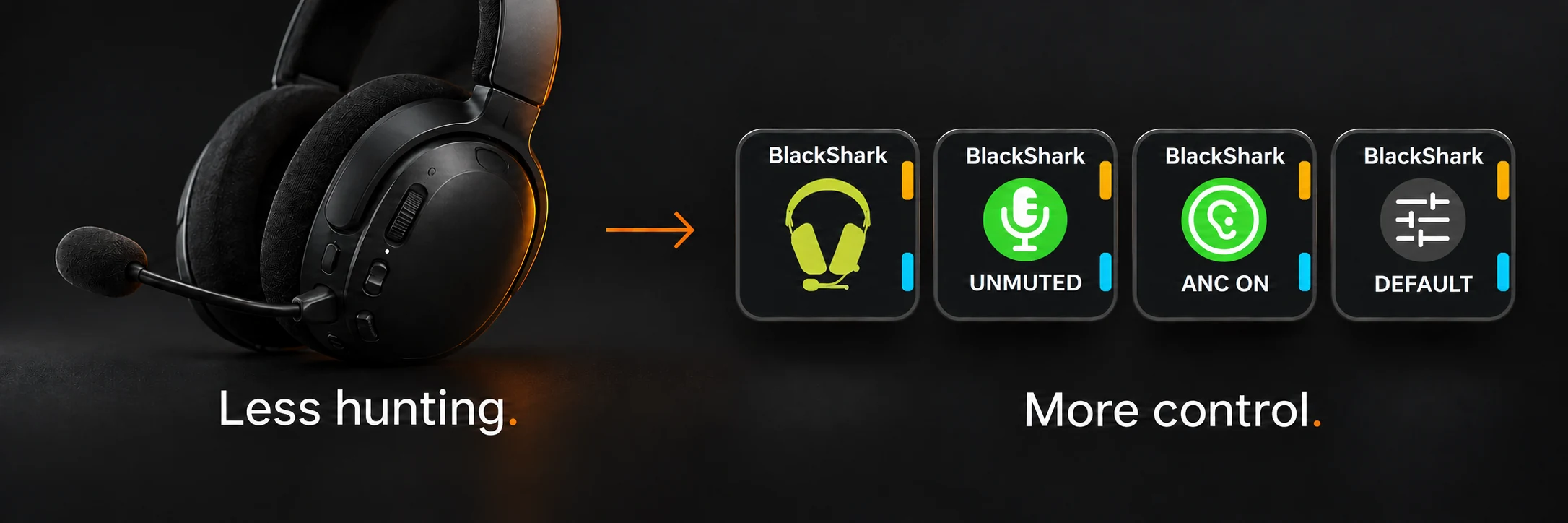
Start here
Your first key
Start with a battery key. Once that’s working, add whatever else you’ll use.
- Connect your headset. Plug its dongle or base station into your PC, or pair it through Windows Bluetooth settings. Turn it on and check that you can hear audio. The headset chart shows which features work with each connection.
- Add Battery Status. Open the Stream Deck app and choose your device and profile. Find VP Headset Companion in the actions list, then drag Battery Status onto an empty key.
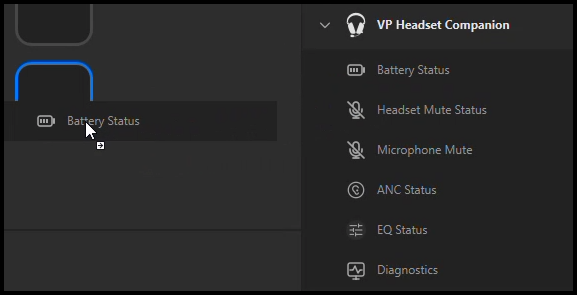
Step 2: drag Battery Status onto an empty key. - Select your headset. Click the new key in the Stream Deck app. In its Action tab, choose your headset from the Headset list. Select it by name if you have more than one connected.
- Choose its appearance. In the same tab, choose Headset or Battery as the gauge style. Try Flood fill if you want the artwork to empty as the battery runs down. With the Headset gauge selected, press the physical key to show percentages for three seconds.
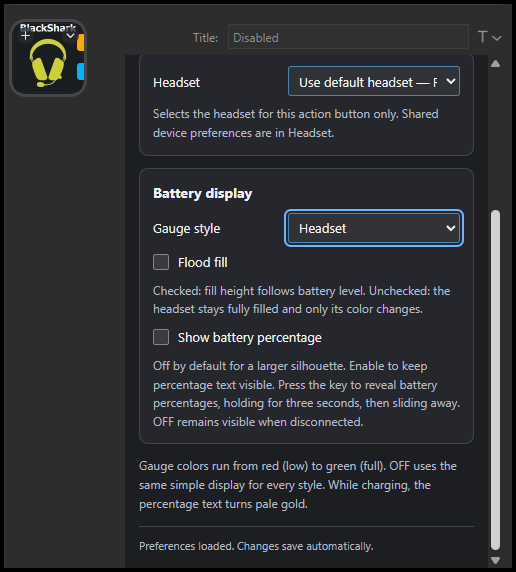
Steps 3–4: select your headset and choose how its battery key looks.
That’s your first key set up. Changes save automatically—there’s no separate Save button.
Make it yours
These next steps are optional. Pick the ones that suit your setup.
Add a mute key
There are two choices:
- Headset Mute Status shows the headset’s own mute button or switch. On most supported headsets, it’s read-only.
- Microphone Mute lets you press a Stream Deck key to mute or unmute through Windows, or Sonar when available.
Drag your chosen action onto an empty key and select your headset in its Action tab. For Microphone Mute, Prefer Sonar uses Sonar when your headset is assigned to its Mic channel, or Windows otherwise. Choose Windows to control Windows mute directly.
Press once to mute and again to unmute. A physical mute switch still needs to be released on the headset.
Try on-screen notifications
Open General, turn on notifications and choose the events you want to see. Pick Expanding pill or Compact card, choose a position, then click Preview notification.
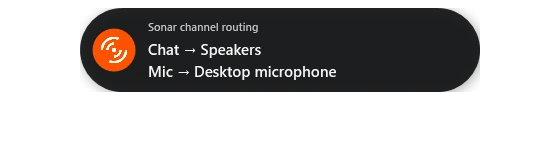
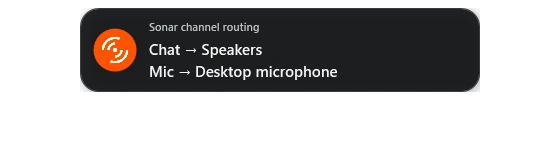
Low and critical battery alerts have separate switches. Optional male or female voice prompts start off; choose where they play in General settings.
Connect it with Sonar
Open the Sonar tab to see which channels use your headset. Show Sonar channel tabs adds colored tabs to the keys.

- Game — upper left
- Media — lower left
- Mic — upper right
- Chat — lower right
- Aux — bottom center
The tabs show channel assignments, not sound playing. See Using Sonar for microphone control, Game/Chat balance and switching to speakers.
Choose ANC, EQ and hardware controls
Open Hardware to see the controls available for your headset, such as microphone volume, sidetone or power saving. Where supported, ANC mode and EQ preset dropdowns let you choose a mode without adding another key.
For quick changes while playing, add ANC Status or EQ Status keys and choose your headset for each. Press to cycle modes, waiting for the label to update between presses.
If EQ stays on Default, Flat or Standard, check Keep onboard EQ in the Headset tab. Turn it off to choose other presets. OpenFit has four EQ choices; Nova 7X cycles Flat and Alan Wake 2. Available choices depend on the headset.
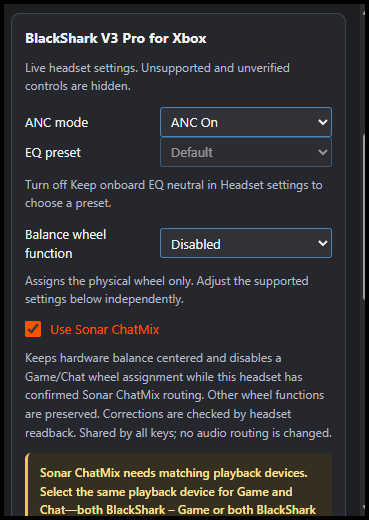
Arrange the keys where they’re easy to reach. Action settings belong to each key, Headset settings apply to keys using that headset, and General settings apply across the plugin.
01 / HEADSETS
What works with your headset?
Features depend on the headset and its connection. Use this chart to see which keys you can use.
Scroll sideways on smaller screens. Microphone columns refer to the separate Microphone Mute action; physical mute status shows the headset’s own mute setting.
| Headset / connection | Battery level | Additional batteries | Physical mute status | Windows mic control1 | Sonar mic control2 | ANC | Onboard EQ3 |
|---|---|---|---|---|---|---|---|
| Razer BlackShark V3 Pro for XboxHyperSpeed dongle / USB | ✓ | — | ✓Read-only | ✓ | ✓ | ✓Status + cycling | ✓Status + cycling |
| SteelSeries Arctis Nova Pro WirelessPC-connected base station | ✓ | ✓Spare battery | ✓Read-only | ✓ | ✓ | ✓Status + cycling | ✓Status + cycling |
| SteelSeries Arctis Nova 7XTested USB dongle | ✓ | — | ✓Read-only | ✓ | ✓ | — | ✓Flat / Alan Wake 2 cycling |
| Classic Bluetooth audioGeneric path; features depend on device | ◐When reported by Windows | ✕ | ✕ | ✓ | ✓ | ✕ | ✕ |
| Shokz OpenFit 2+Bluetooth | ✓Headset / Windows | ✓Left earbud, right earbud, case | ✕ | ✓ | ✓ | ✕No listening ANC hardware | ✓Status + cycling · Four presets |
- Windows mic control: Windows must be able to identify your headset’s active microphone.
- Sonar mic control: select your headset for Sonar’s Mic channel. Otherwise, Prefer Sonar uses its Windows microphone.
- Turn off Keep onboard EQ if you want the EQ key to change presets.
Also supported: Corsair Virtuoso RGB Wireless XT supports battery, mute and connection status, but not ANC or headset EQ. Its hardware mute control needs iCUE running.
OpenFit 2+: see separate left-earbud, right-earbud and case batteries, and switch between Standard, Vocal, Bass Boost and Treble Boost EQ. This model doesn’t have listening ANC.
More headset controls
Open the Hardware tab to adjust the settings available for your headset.
- Microphone volume, sidetone and power saving: available on BlackShark V3 Pro for Xbox, Nova 7X and Nova Pro Wireless. Sidetone lets you hear your own voice; power saving sets how long the headset waits before turning off.
- Wheel assignment, Game/Chat balance and ANC strength: available on BlackShark. ANC strength can be adjusted while noise cancellation is on.
- Microphone LED brightness: available on Nova 7X and Nova Pro Wireless. Nova 7X includes Off; Nova Pro adjusts from 10–100%.
02 / WHAT YOU NEED
Before you start
- A Windows x64 PC.
- Stream Deck 7.1 or later.
- A supported headset connected to your PC.
Notifications need Microsoft’s .NET 10 Desktop Runtime for Windows x64. It also includes the runtime used for OpenFit’s individual battery readings. See Microsoft’s installation instructions if you need it.
Sonar is optional. You can use the plugin without it.
03 / YOUR KEYS
Choose the keys you’ll use
- Battery Status
- Keep an eye on your battery. Choose a Headset silhouette or Battery gauge. Press the Headset gauge to briefly show percentages. OpenFit shows left, right and case; Nova Pro can show its spare battery too.
- Microphone Mute
- Press to mute or unmute your headset’s microphone in Windows or Sonar. This is the key to choose if you want a software mute button.
- Headset Mute Status
- Check the headset’s own mute setting. On BlackShark and Nova, this key only shows status. Virtuoso XT can also change hardware mute while iCUE is running. Over Bluetooth, use Microphone Mute instead.
- ANC Status
- See the current noise-cancellation mode and press to change it on supported headsets. You can also choose ANC mode in the Hardware tab where available.
- EQ Status
- See the current sound preset and press to cycle through supported presets, or choose EQ preset in the Hardware tab where available. If Keep onboard EQ is on, turn it off first to change presets.
- Diagnostics
- See connection details and messages when you need help with a problem.
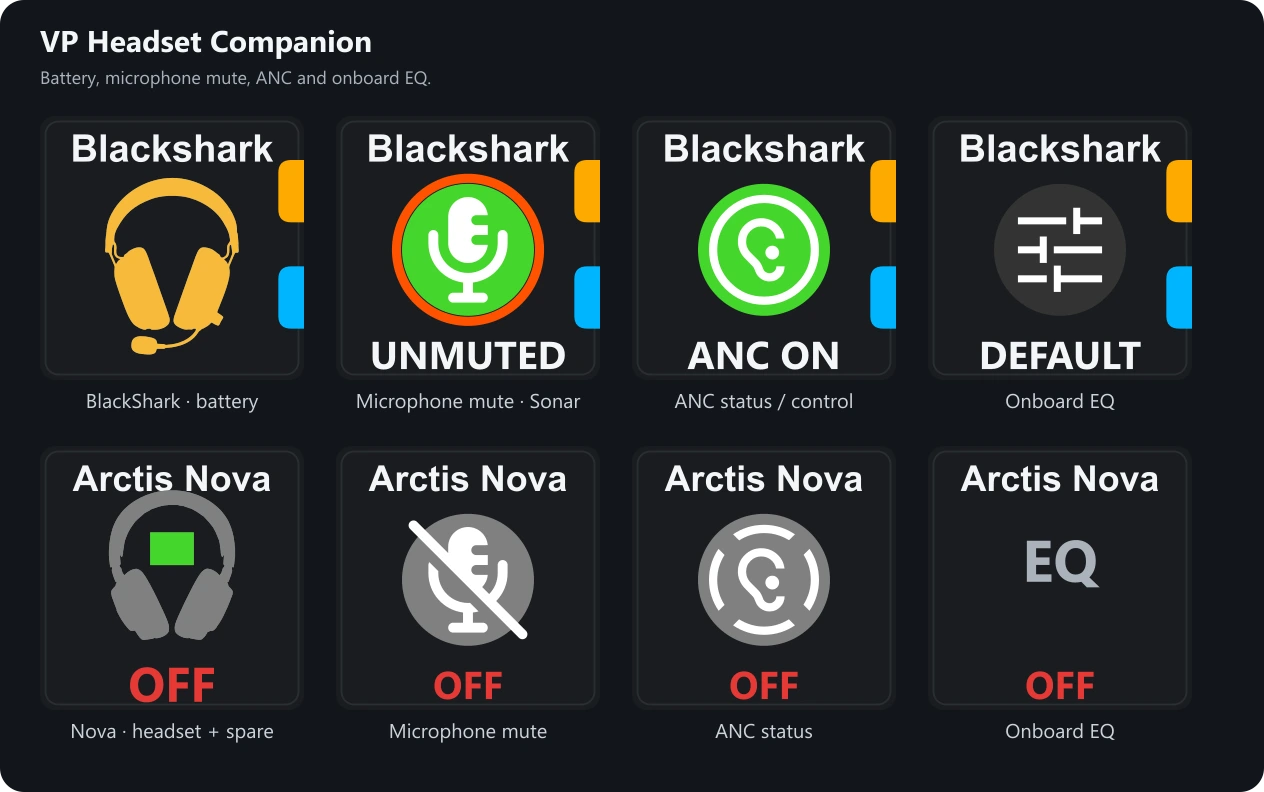
Wait for the key to show the new mode before pressing again. If you use the headset’s physical mute switch, you’ll still need to release that switch to speak.
04 / SETTINGS & ALERTS
Make it work for you
Change the look
In the Action tab, choose your gauge and battery display. Flood fill makes the fill level follow the battery level; leave it off for a solid-colored silhouette. Show battery percentage keeps the number visible where available.
Battery colors run from red when low to green when full. Grey means a reading isn’t available. Test battery % lets you preview the colors—clear it when you’re done.
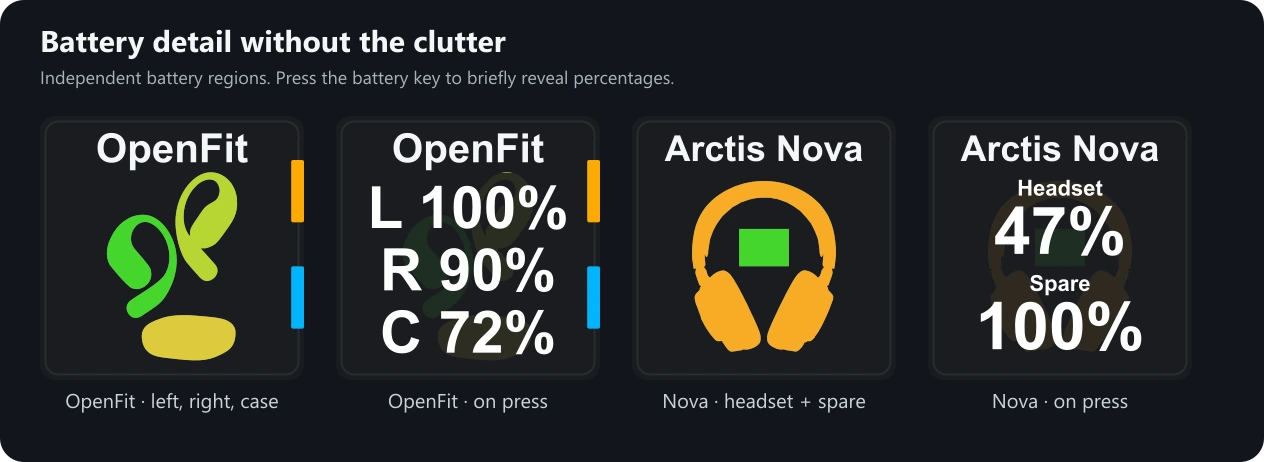
Read the Sonar tabs
The small colored tabs along the edges of a key show which Sonar channels are assigned to that headset: Game is teal at the upper left, Media pink at the lower left, Mic amber at the upper right, Chat blue at the lower right and Aux purple at the bottom center. For example, teal and blue tabs mean both Game and Chat use that headset. They show where channels are assigned, not whether sound is playing.
Tabs appear when Sonar is running and a channel is assigned to your connected headset. To hide them, turn off Show Sonar channel tabs in the Sonar tab.
Turn on notifications
Open General settings and choose which changes you want to see on screen. Pick Expanding pill or Compact card, choose a screen position, then use Preview notification to try it.
Banners can show connection, mute, ANC, EQ and Sonar channel changes. They work best in windowed or borderless games.
Get a low-battery heads-up
Low and critical battery alerts have separate switches. Add optional male or female voice prompts and choose where the sound plays in General settings. Voice prompts start off.
Low alerts start at 20%, or a reliable estimate of 30 minutes remaining. Critical alerts start at 5%, or 10 minutes. Case and spare batteries use percentages only.
For OpenFit, press the Headset gauge to see left, right and case readings. If the case reading is missing, close the Shokz phone app and give it a moment to update.
05 / USING SONAR
Your headset and Sonar, together
If you use Sonar, Companion brings its channel assignments and microphone control to your Stream Deck. Keep using Sonar for mixing and sound adjustments. Use Open Sonar in the plugin’s settings to jump straight to it.
Read the channel indicators
The colored tabs on a key show which Sonar channels use that headset: Game is teal at the upper left, Media pink at the lower left, Mic amber at the upper right, Chat blue at the lower right and Aux purple at the bottom center. You can hide them with Show Sonar channel tabs in the Sonar tab.
Choose how the microphone key works
Prefer Sonar is the default under Mute through:. If Sonar’s Mic channel uses your headset, the key controls Sonar mute. Otherwise, it uses that headset’s Windows microphone. Choose Windows if you prefer to control Windows mute directly.
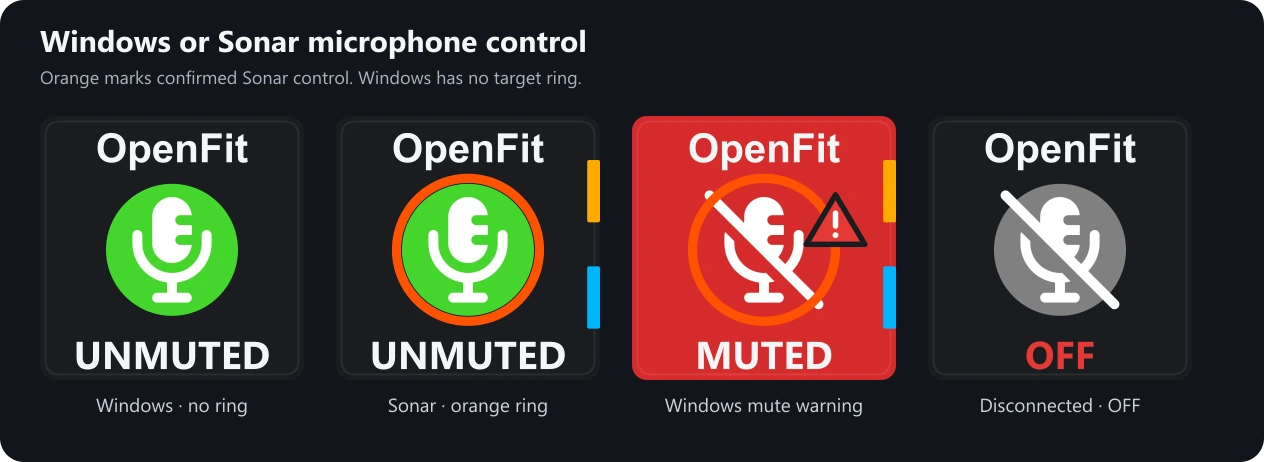
Red warning triangle? Windows has also muted the microphone. Use Unmute Windows in the key’s settings to clear that mute. Check the headset’s physical mute switch too.
Using Sonar’s Streamer mode?
Choose Stream to control the audience mix or Personal for your monitoring mix. These options appear when Sonar is in Streamer mode.
Let Sonar handle EQ
If Sonar handles your EQ, turn on Keep onboard EQ in the Headset tab. It holds Razer at Default, Nova at Flat, or OpenFit at Standard, so two sound presets aren’t changing the same audio.
Want to use the headset’s own presets instead? Turn that setting off. The EQ key can then cycle presets again.
Balance game sound and chat
For BlackShark’s Use Sonar ChatMix option, set Sonar’s Game and Chat channels to the same playback device. Both can use BlackShark Game or both can use BlackShark Chat—not one of each. Game is on the left of the balance control; Chat is on the right.
Turning this on centers the headset’s own balance and disables a Game/Chat wheel assignment. Other wheel functions stay as they are. Turning it off doesn’t restore the old wheel assignment. This option uses Sonar’s Classic mode.
Switch to speakers when the headset turns off
In Sonar, arrange your preferred devices and set Backup Device Switch to Auto. Enable the wireless-off switching option if your device supports it.
If Sonar can detect that headset switching off, Companion lets Sonar handle it. For supported headsets where it can’t, the plugin offers audio-device management in the Headset tab to help Sonar switch. Follow the guidance shown there; Companion won’t choose your audio routes for you.
Why are these options already on or off?
Your saved choices are kept. New headsets start with neutral headset EQ when Sonar is installed. Switching defaults depend on whether Sonar can detect that headset turning off; if that’s unknown, no switching default is chosen.
06 / HELP
Something not working?
- Wrong headset or grey key: check that it’s on, connected and selected in the key’s Action tab.
- No microphone control: check that Windows can see your headset’s microphone. Over Bluetooth, use Microphone Mute rather than Headset Mute Status.
- Muted even though the key says unmuted: check the headset’s physical switch and look for the red Windows-mute warning.
- EQ won’t change: turn off Keep onboard EQ if you want to cycle presets.
- OpenFit battery or EQ won’t update: close the Shokz phone app and try again. Repeated conflicts can pause Keep onboard EQ Standard; check Diagnostics before retrying it.
- Battery values look wrong: clear Test battery % in settings.
- No banners: check Notifications in General settings and the .NET Desktop Runtime. Try a windowed or borderless game.
- No Sonar channel tabs: check Show Sonar channel tabs and Sonar’s selected devices.
Still stuck? Ask on Discord ↗ or join the server first ↗. Tell me your headset model, plugin version and what happened. Remove personal details before sharing logs or screenshots.
07 / IDEAS
Ideas Under Consideration
More headsets, extra controls, more voice options and easier settings backups are some things I’d like to explore. Have something in mind? Let me know on Discord.
08 / CREDITS
Icon credits
Icons and glyphs from Font Awesome Free, Google Material Symbols and Bootstrap Icons are used in the plugin. Some artwork has been adapted. License and attribution notices are included with the plugin.